Roster Schedule to Google Calendar — No App Needed
Paste your Excel roster once and sync all your shifts directly to Google Calendar — built as a static page with no server or app install required.
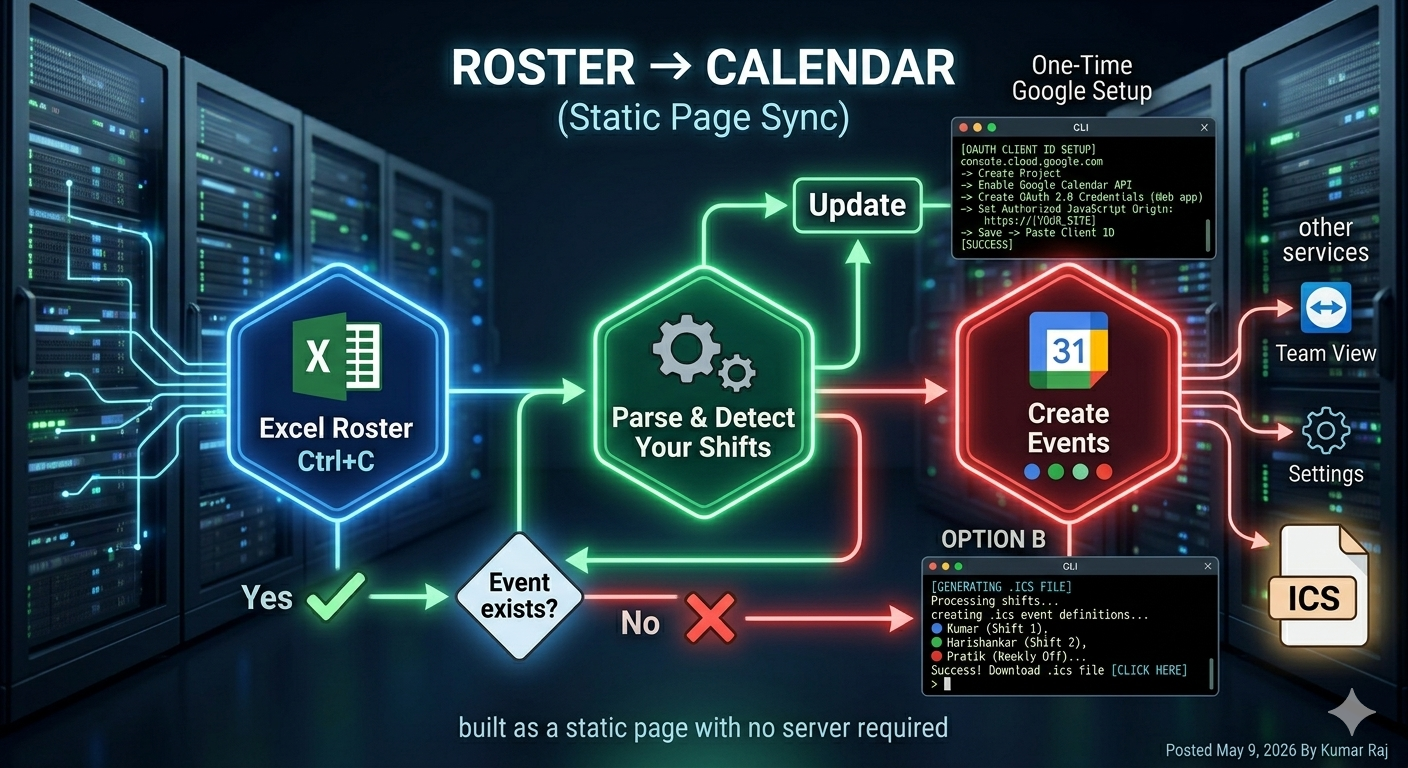
Every month I’d open the Excel roster, find my name, and manually create each shift in Google Calendar. 30+ days, three columns to check, 20 minutes gone. I finally got tired of it and built a small tool to do it for me.
Try it: Roster → Calendar — paste your roster, preview your shifts, sync to Google Calendar (or download an ICS file).
How It Works
flowchart LR
    A[Excel Roster\nCtrl+C] -->|Paste| B(Parse & Detect\nYour Shifts)
    B --> C{Event exists?}
    C -->|Yes| D[Update]
    C -->|No| E[Create]
    D & E --> F[Google Calendar]

    style A fill:#1e293b,stroke:#475569,color:#e2e8f0
    style B fill:#1e3a5f,stroke:#3b82f6,color:#e2e8f0
    style C fill:#1e293b,stroke:#6366f1,color:#e2e8f0
    style D fill:#064e3b,stroke:#10b981,color:#e2e8f0
    style E fill:#064e3b,stroke:#10b981,color:#e2e8f0
    style F fill:#1e3a5f,stroke:#3b82f6,color:#e2e8f0
You copy the roster table from Excel, paste it into the tool, and it figures out which shifts are yours. You get a preview, then choose to sync directly to Google Calendar or download an .ics file to import anywhere.
No app to install, no account to create, no server running anywhere.
The Roster Format
The tool reads the standard 5-column roster format:
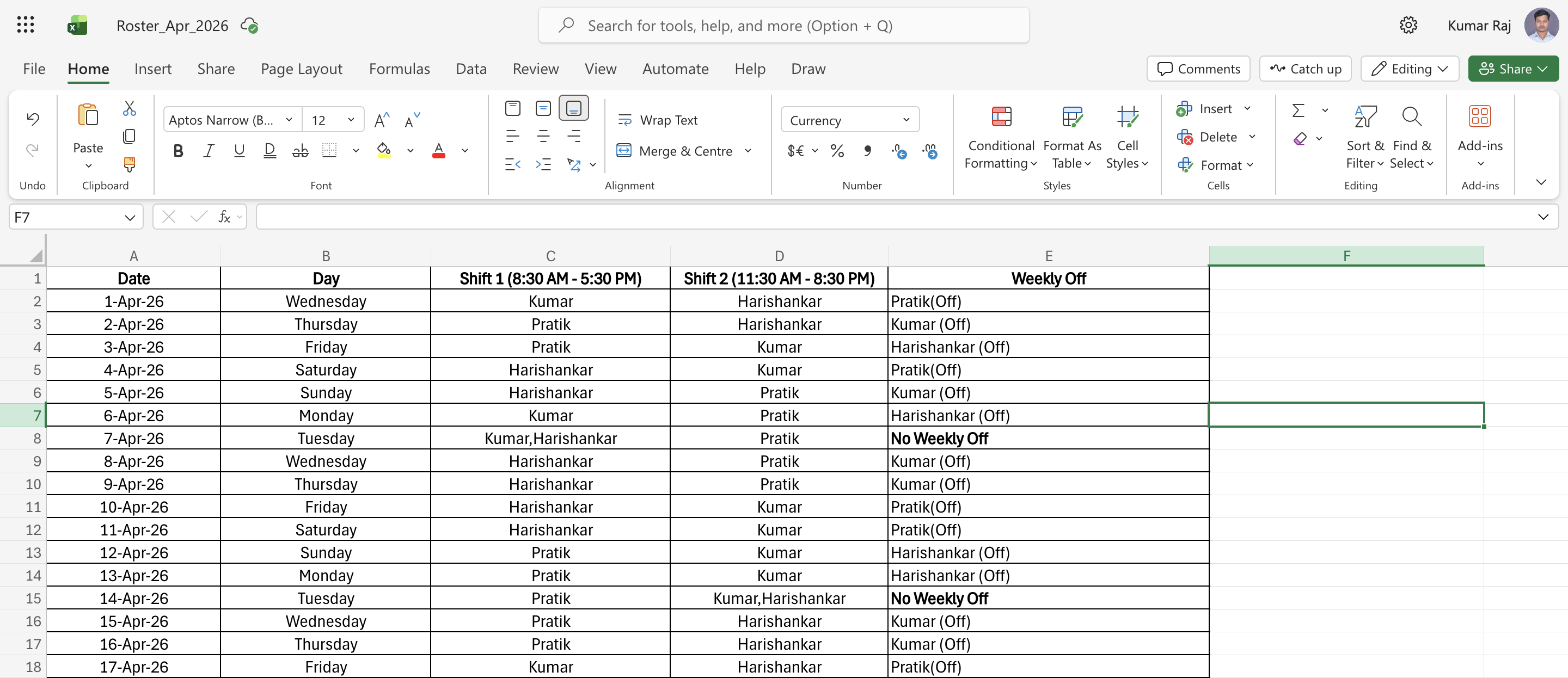 Select any range in Excel including the header row, copy with Ctrl+C, and paste into the tool.
It handles all the usual variations — names with parentheses like Kumar (Off), comma-separated names like Kumar,Harishankar, and No Weekly Off days.
One-Time Google Setup
To sync directly to Google Calendar, you need a free OAuth Client ID from Google Cloud. This is a one-time setup.
- Go to console.cloud.google.com and create a new project
- Go to APIs & Services → Library and enable Google Calendar API
- Go to APIs & Services → Credentials → Create Credentials → OAuth 2.0 Client ID
- Set type to Web application
- Under Authorized JavaScript origins, add your site URL (e.g.
https://yourdomain.github.io) - Copy the Client ID, paste it into the Configuration section on the tool page, and click Save
The Client ID is not a secret — it only works from the domains you listed in step 5.
How to Use It
- Open Roster → Calendar
- Select your roster in Excel (include the header row) → Ctrl+C
- Click inside the paste area on the page → Ctrl+V
- The tool shows a preview of your shifts with dates, times, and shift type
- Uncheck any rows you want to skip
- Option A — Google Calendar: click Sign in with Google, then Sync Events
- Option B — Any calendar app: click ⬇ Download ICS, then import the file
What Gets Created
Each event is colour-coded and includes a description showing the full day’s roster:
| Shift 1 | Shift 2 | Weekly Off | |
|---|---|---|---|
| Time | 8:30 AM – 5:30 PM | 11:30 AM – 8:30 PM | All day |
| Color | 🔵 Blue | 🟢 Green | 🔴 Red |
| Reminder | 30 min before | 30 min before | — |
| Location | Office | Office | — |
The event description always shows who’s on each shift that day, so you can check at a glance without opening the roster:
1
2
3
🔵 Shift 1 (8:30 AM - 5:30 PM)  : Kumar  ← on duty
🟢 Shift 2 (11:30 AM - 8:30 PM) : Harishankar
🔴 Weekly Off                    : Pratik
If you paste the same roster again, it updates existing events instead of creating duplicates.
Managing Events
The Manage Calendar Events section lets you fetch your existing roster events for any date range, review them in a table, and delete individual ones. There’s also a one-click button to bulk-delete everything older than 2 months — useful for keeping your calendar tidy.
What’s Next
- Team view — show all team members’ shifts in one calendar, each in a different colour
- Configurable shift times — let you set the start/end times from the UI rather than hardcoding them